This article applies as of PRTG 26.1.118 and multi-platform probe 3.8
Multi-platform probe for PRTG
With PRTG 21.4.73, we introduced the multi-platform probe for Paessler PRTG (hereafter referred to as the multi-platform probe) to extend the native monitoring capabilities of PRTG to non-Windows platforms, for example Linux, Raspberry Pi, or NAS systems.
The following article describes the steps you need to take in the Customer Portal (https://app.my-prtg.com) or Partner Portal (https://partners.my-prtg.com) to connect a multi-platform probe to your PRTG Hosted Monitor instance.
Before you start
To connect a multi-platform probe to your PRTG Hosted Monitor instance, you must first install the multi-platform probe on the target system. For detailed instructions specific to the platform of your choice, see the Multi-Platform Probe for PRTG manual.
Important for PRTG Hosted Monitor instances:
- As of PRTG 26.1.118 and multi-platform probe 3.8, we deprecated the option to use a username and password for NATS authentication in connection with PRTG Hosted Monitor. If you added users prior to this version, the username/password authentication still works but you cannot add new users in the Customer Portal. During setup with the configuration wizard, select NKey (integrated NATS server) in the NATS authentication scheme setting to use NKeys instead.
- During setup with the configuration wizard, note down the NATS Server Access Identifier that consists of the Tenant name, NKey, and Comment (probe ID). You must enter these values in the PRTG Hosted Monitor Customer Portal to set up the NATS authentication. If you need to, you can rerun the configuration wizard to reveal these values again or you can check the configuration file.
- Also make sure that you note down the Probe Access Key value and enter it in PRTG under Setup | System Administration | Core & Probes | Probe Connection Settings | Access Keys.
Step 1. Enable multi-platform probes
To connect multi-platform probes to your PRTG Hosted Monitor instance, you must first enable them:
- Open the Customer Portal and select Multi-platform probe from the navigation sidebar on the left-hand side.
- Select the instance from the dropdown menu that you want to connect multi-platform probes to.
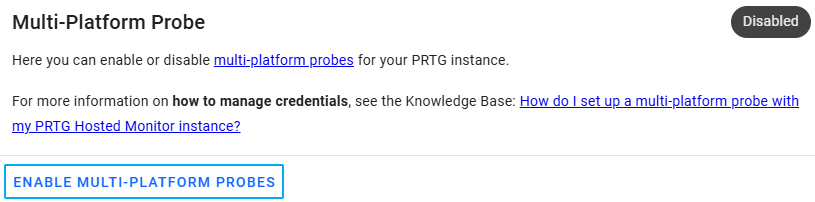
- Click Enable multi-platform probes.
Step 2. Connect your multi-platform probe
Once multi-platform probes are enabled for the selected instance, you can add the necessary details for the NATS authentication:
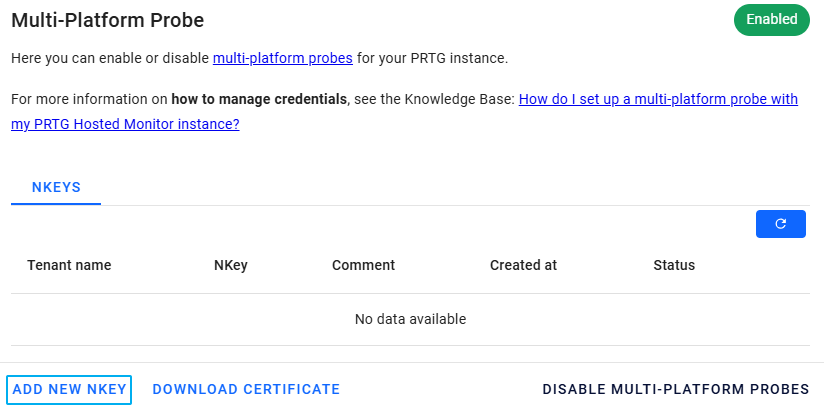
- Click Add new NKey.
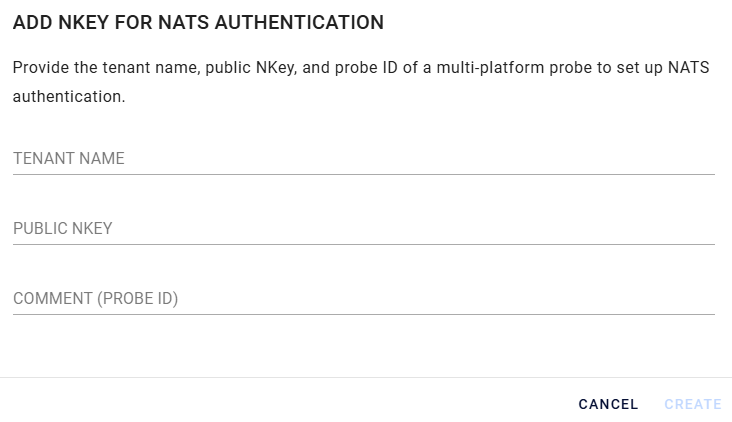
- Add the tenant name, NKey and the comment (probe ID) values from the NATS Server Access Identifier of the multi-platform probe that you want to connect. Then, click Create.
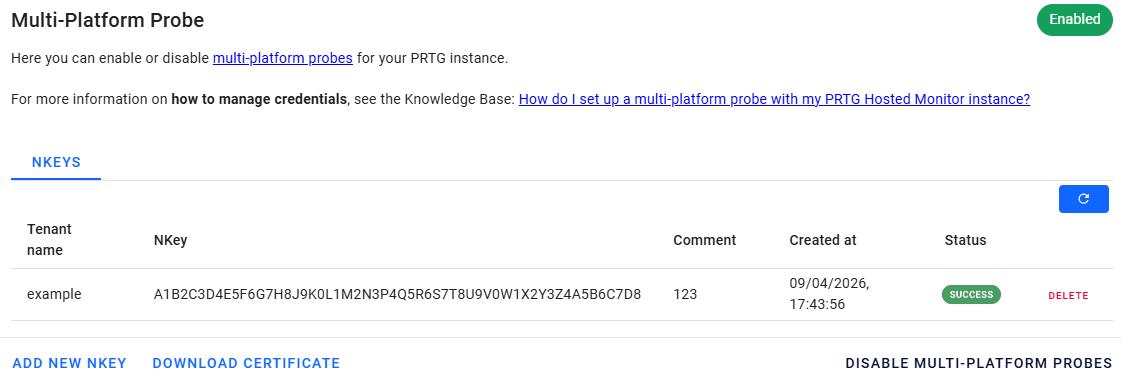
- PRTG checks the connection, during which time you can see a Pending status for the connection. Once the connection is established, the status changes to Success and your multi-platform probe can connect to your PRTG Hosted Monitor instance via the NATS authentication details you added.