This article applies as of PRTG 26
How can I run PRTG under a user account with reduced privileges for security reasons? What are the minimum privileges required for such an account?
Run PRTG under a different account than the local system account
You can use a dedicated Windows user account instead of a local system account to run PRTG. It does not matter if this user account is a local account or a domain account. However, it is required that the account can run as a service account.
You can change the local system accounts for both the PRTG Core Server Service and the PRTG Probe Service to service accounts via services.msc.
Note: It is not necessary that both services run under the same service account.
Take the following steps:
- Enter services.msc in Windows search bar to open the Windows Services app.
- Scroll down to PRTG Core Server Service and PRTG Probe Service.
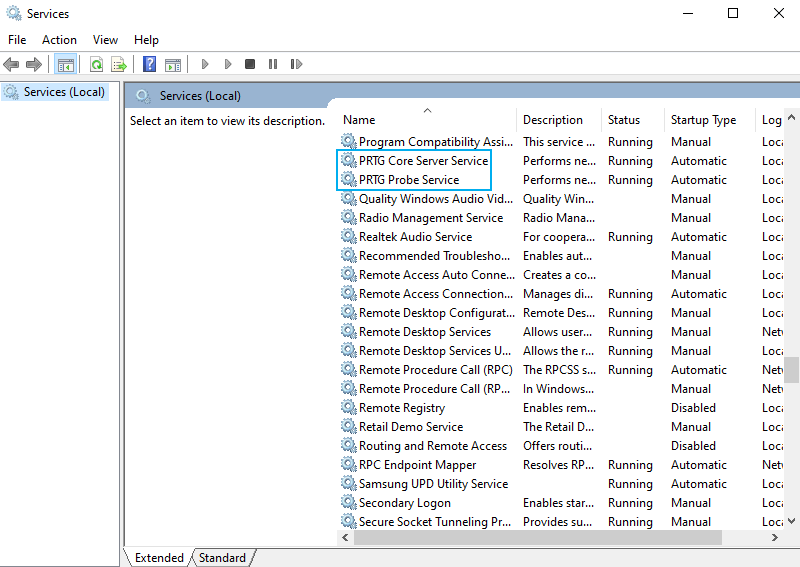
- Double-click the service that you want to edit.
- Click the Log On tab.
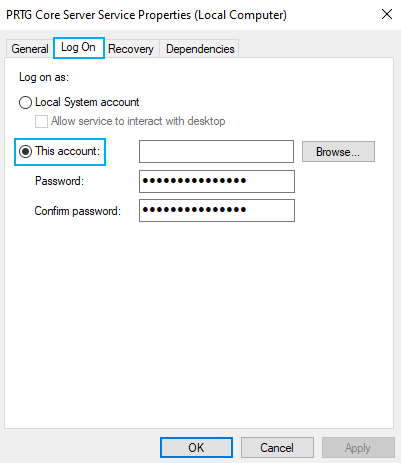
- Select This account and browse for the service account that you want to use.
- Enter and confirm the Password for the account.
- Click OK to save your settings.
The service now runs under a dedicated service account instead of the local system account.
Required privileges for the service account
Make sure that the service account has the following minimum privileges:
- Access to the PRTG program directory and the PRTG data directory. For more information, see the PRTG Manual: Data Storage.
- Rights to run local WMI read queries
- Rights to run EXE-based sensors
- Access to the Paessler registry:
HKEY_LOCAL_MACHINE\SOFTWARE\Wow6432Node\Paessler\
